
Opencart Algolia Search

Opencart Algolia Search: This extension allows Algolia search services to be used by the store owner to improvise the search results for the online store. Whenever the customer enters any word to search for any product, the product name searched is autocompleted.
It also automatically displays related objects from the search to the customer. Through using the Algolia API keys, the admin needs to integrate the Algolia server with the website. The admin needs to sync all products to Algolia servers after connecting with the Algolia server.
Features
- It autocompletes the search results and shows similar products to the entered word.
- The admin can sync all the products to the Algolia server to improvise search results.
- Can remove any product from the Algolia server by using the remove button.
- Removed products from the Algolia server will not appear in the search results.
Installation
To install this add-on please follow every step carefully. First, you need to upload both admin and catalogue folders into the open-cart root folder directory as shown in below screenshot.
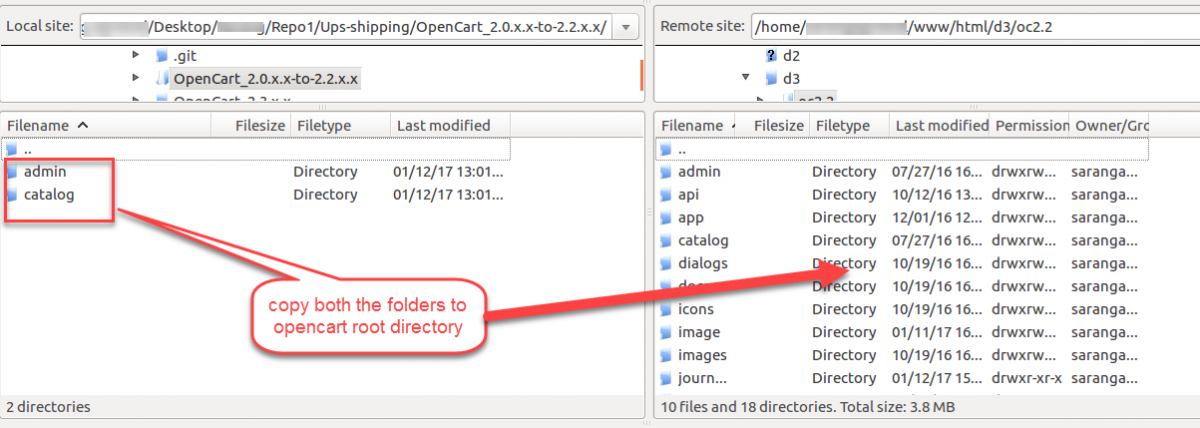
After copying both folders, log in to your Admin account in open cart and click the Extensions menu option as shown below.

This is the Extensions settings page here you can find all list of Opencart extensions. Here you have to go to the drop-down menu and select the Modules option as shown in the below screenshot.

After selecting a Shipping menu option, a new page will appear where you will find all the list of shipping extensions, you will find Alogolia Product Search extension in the list click the Install button as shown in the below screenshot.

Language Translation
This extension supports multiple languages. To set up different languages for this add-on please click here to view the instructions.
Module Configuration
After that, click the Edit button to make changes to this extension after successfully installing Alogolia Product Search.
Note: To configure the Opencart extension, you will need the following Algolia credentials. You can find these credentials on the Algolia Dashboard, on the API Keys page from the menu.

Also, you will arrive at the Alogolia Product Search configuration page after clicking the Edit button. Here, the administrator must provide all the appropriate information as follows:
Status: Set Enabled or Disabled.
Application ID: Your Application ID, which can be found in the Credentials section of your Algolia account.
Indices Name: If configured, all indices created by the Algolia search extension will be prefixed by this value.
Search-Only API key: A search only API key.
Admin API key: Your administration API key.
Monitoring API key: The Monitoring API lets your interact directly with the status of your Algolia clusters.
Placeholder: The placeholder attribute specifies a short hint that describes the expected value of an input field.

After saving your settings, the Alogolia Product Search form will appear on the Front-End during the search or products.
Alogolia Search
Here admin can view all the products of the store. Admin can sync their products from Algolia server by clicking on the icon as per the below image.
Algolia Products

By selecting the products, an admin can remove products from Alogolia server as per the below image.

Customer Front-End View
Customer can search product via entering the first letter and they can view all the products which are sync through algolia.

Here, you can see the Algolia products as per the below page:

If the product does not sync with Algolia then have to enter the full product name and the product page will show as per the below image:

That’s all for the Opencart Algolia Search. Moreover, still have any issue, feel free to add a ticket and let us know your views to make the plugin better at webkul.uvdesk.com.
Current Product Version - 1.0.0.0
Supported Framework Version - OpenCart, 2.x.x.x, 3.x.x.x
. . .
Back to Top

Advertising by Adpathway







;)